Anatomy of a Detailed Report
Front Matter
(KPI charts page)
(Video stills)
(Overview and details maps)
Assets summary tables
(Asset History)
Front matter
- Document Header
- KTech logo
- (Customer logo) if present in the database
- "Detailed Report" title
- Print button
- Report Metadata
- "Prepared by"
- "Address"
- ("Work package") only shown when opened from a Work Report
- (Site no/order) editable, only shown when opened from a Work Report
- "Inspector's name" (editable)
- "Date of report" (editable)
- (Report Keys) if configured for workspace
- Summary Text (editable, extensible)
- (Statement) if configured for workspace
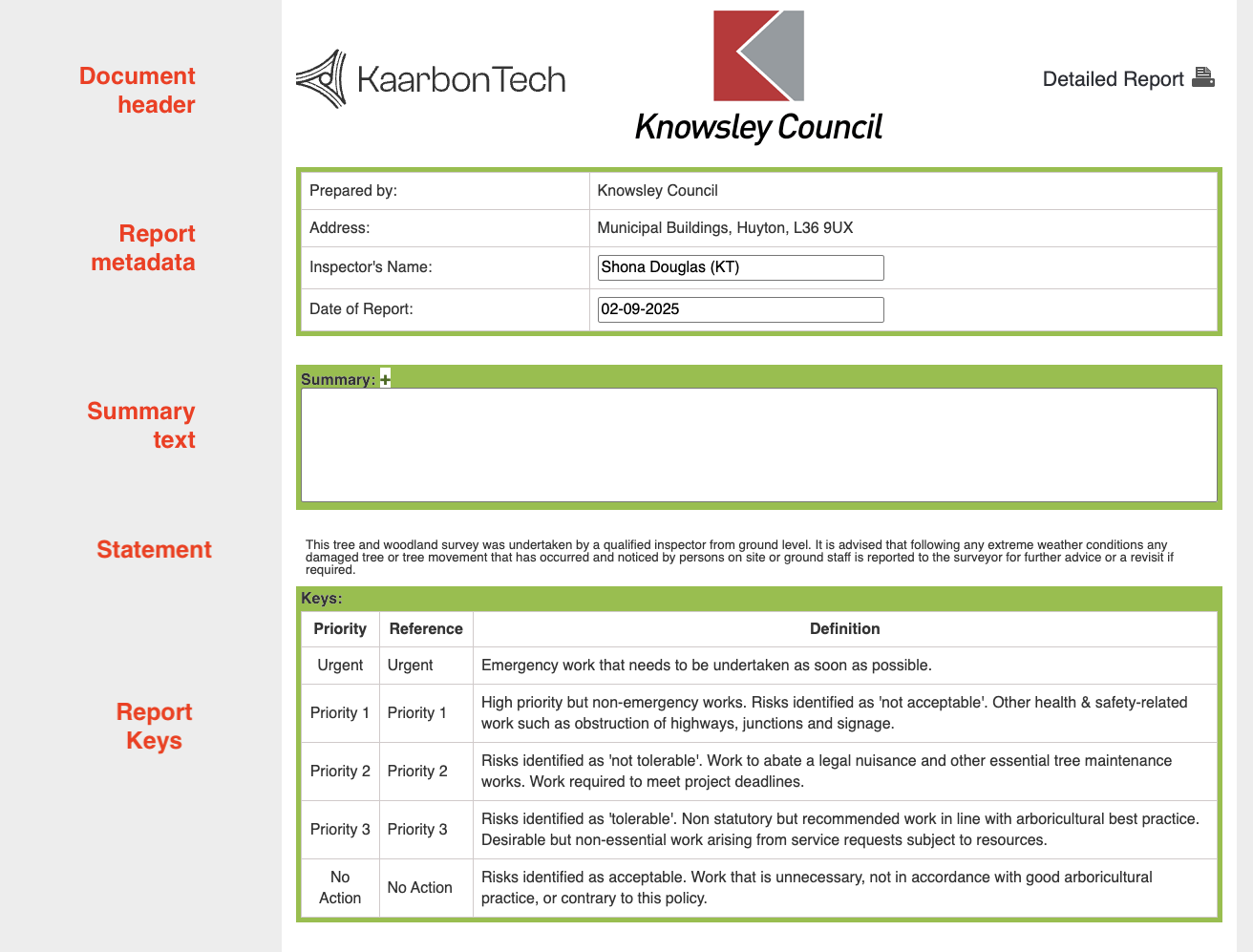
Configuration and options
- Report Keys: configured per workspace
- Statement: configured per asset-type, overridden in work-space configs.
- TODO what determines the presence of the logo?
There are no user dialogue options.
"Inspector's name" and "Date of report" are editable, and "Summary Text" is a free-text entry box.
KPI charts page
Only for trees currently.
Configuration and options
TODO If configured, it is presented as a user-selectable option.
"name": "includePieCharts", "display": "Include KPI",
Video stills
Only for channels with CCTV currently
Configuration and options
TODO if configured, it is presented as a user-selectable option
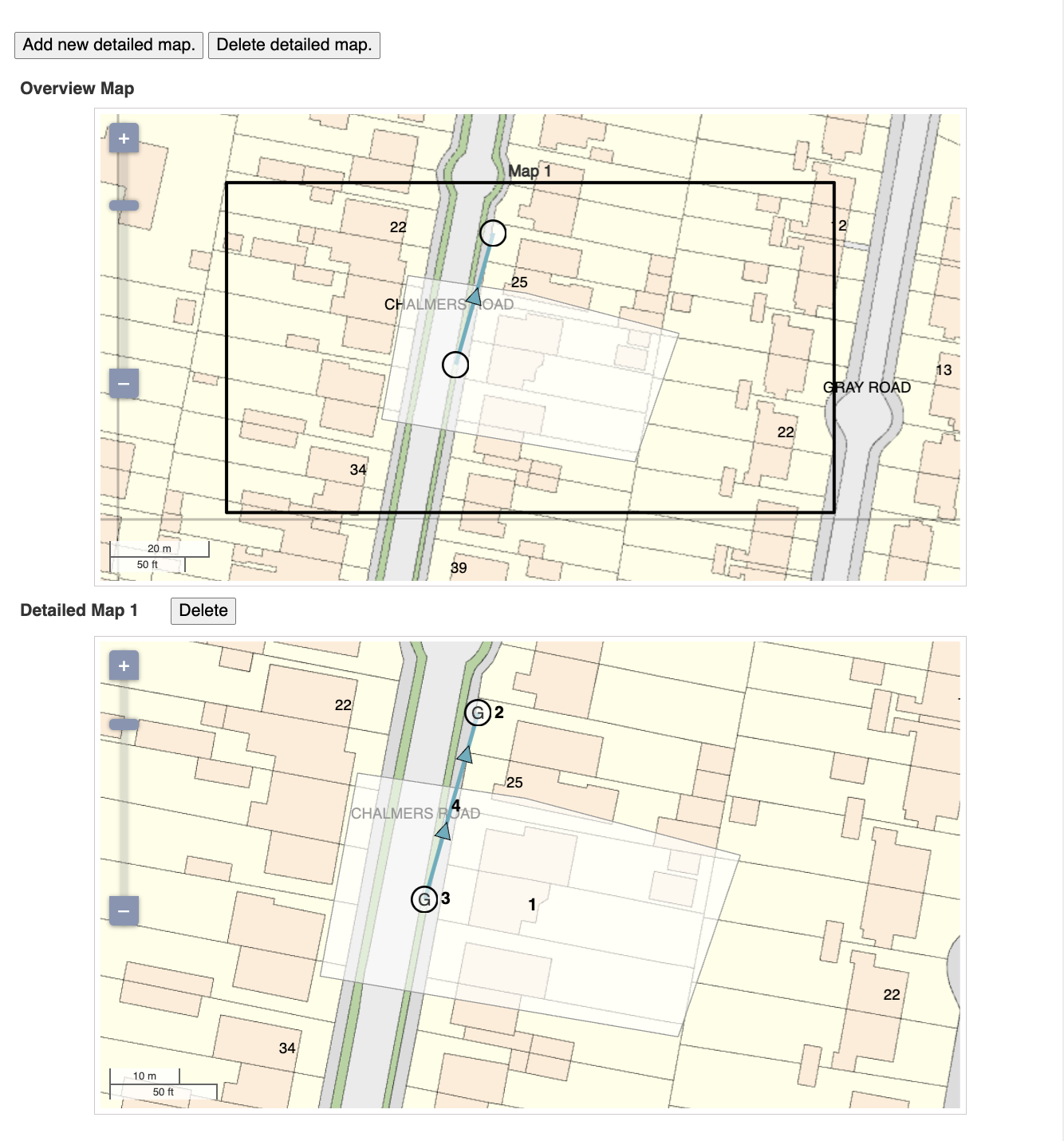
Overview and detailed maps
Shows the selected assets
- on an adjustable Overview Map (which has no labels to avoid clutter)
- on user-addable, adjustable Detailed Maps with the report label that matches the assets summary table entry
If any of the asset-types in the report filters have Map Annotations configured, these are offered as user-selectable options.
- Examples are CCTV defects for channels, silt levels for nodes, and various overlays like Root Protection Area for trees.
- Map annotations selected by the user are displayed as overlays on the detailed maps.
Note that only the assets selected for the report are shown on these maps (compare with the maps on Asset History, which also show all nearby assets).
Screenshot
Configuration and options
User dialogue options:
- option for overview and detailed maps is shown if the source is an asset page
- option for number of maps per page
- option for map legend (just for trees)
Configuration options
- map annotations are defined per asset type in the detailed report configs
Assets summary tables
Asset Type Assets Summary Table
The standard format is to group all assets of the same type in a single Asset Type Assets Summary Table. Each asset in the table has two rows (the Asset Summary Rows)
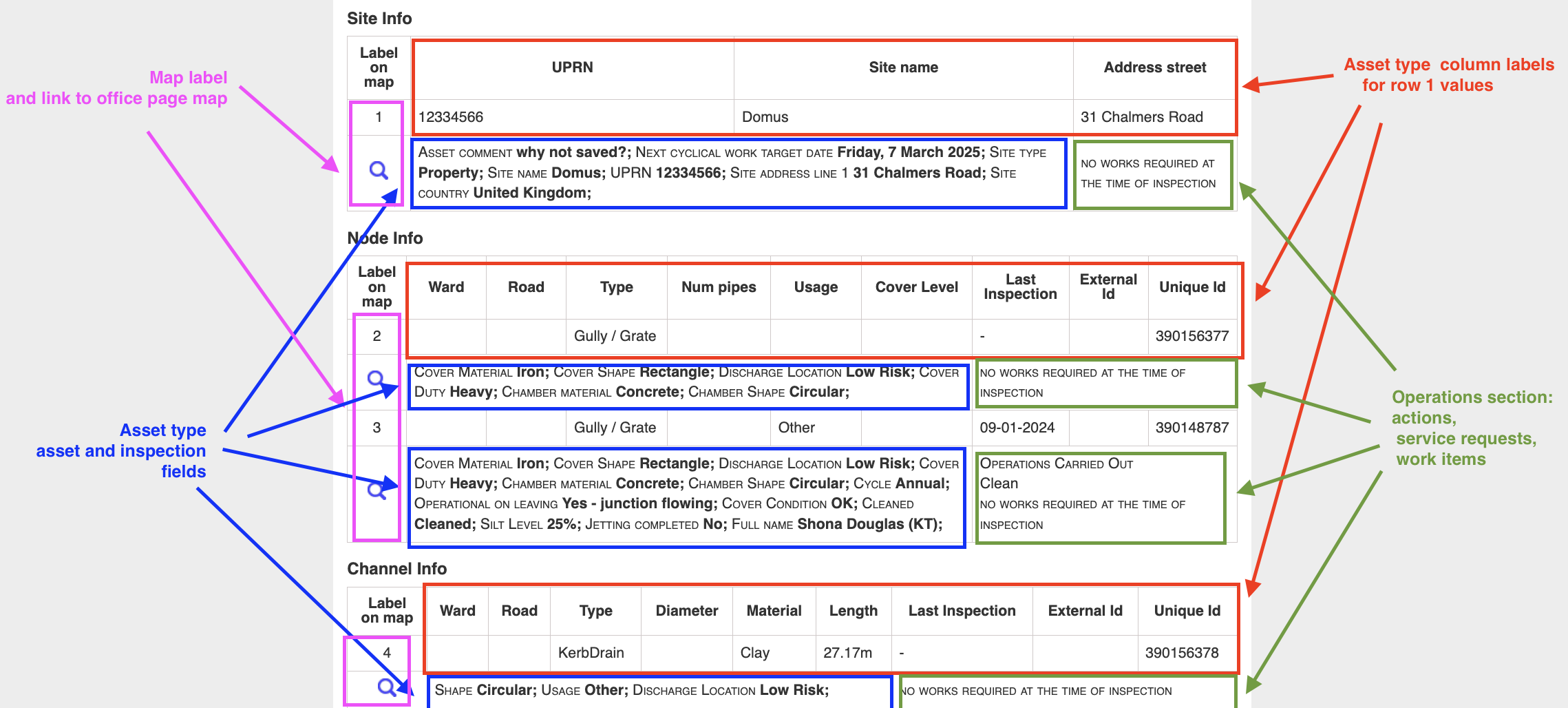
TODO: redo this diagram splitting out the column labels from row 1. Replace the screenshot with something illustrating the various cases for actions and service requests.
Screenshot
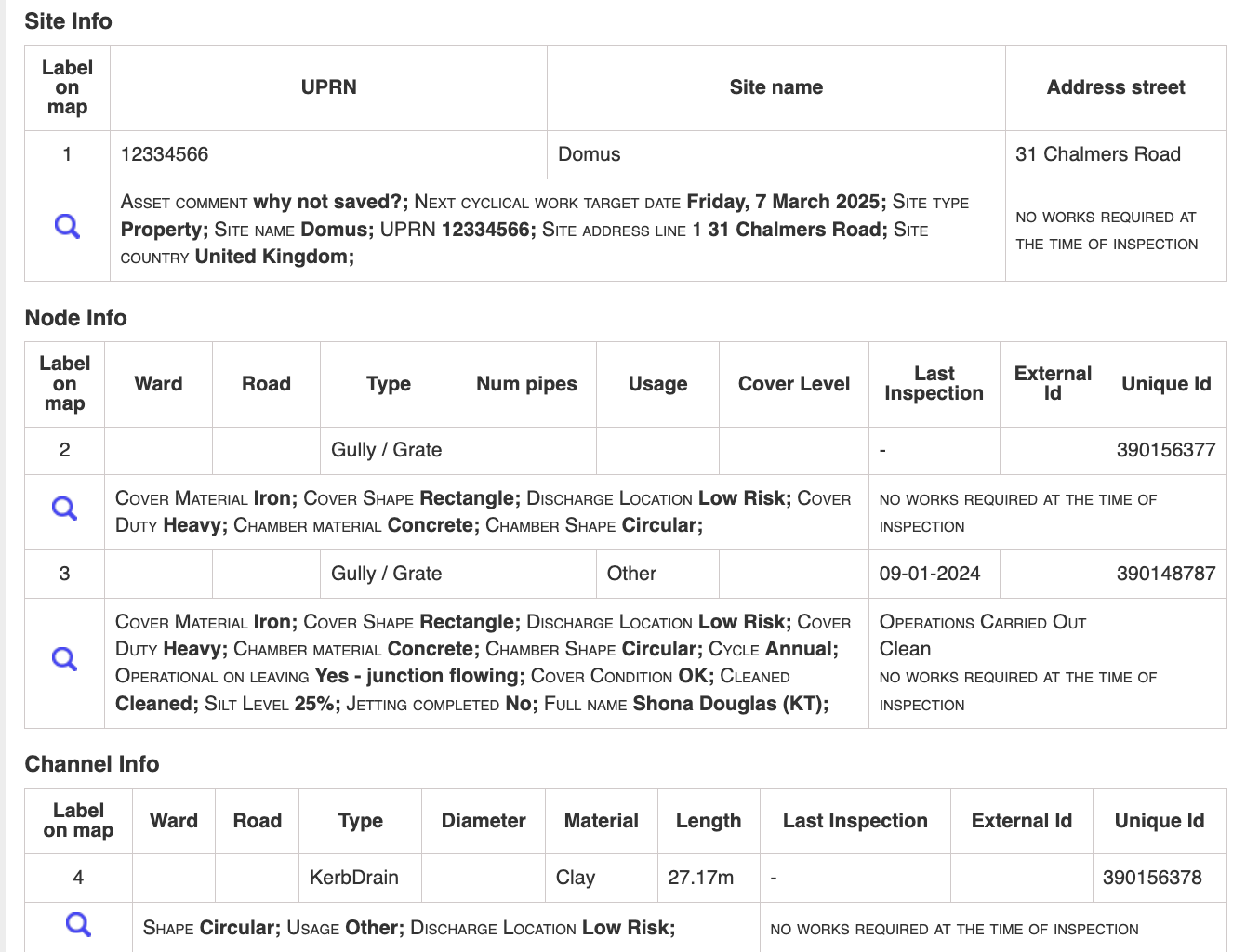
The first column always contains
- the unique Report Label for the asset on the first row, which allows it to be found on the Detailed maps
- a "magnifying glass" link to the asset location on the main office map
The other content in the asset summary rows is configurable per asset type:
- The first row contains arbitrary Summary Table Columns with a supplied label and values that can be any string calculated from the asset
- The second row is split into two parts
- The Asset and Inspection Fields section contains a list of asset and inspection attribute values
- The Operations section displays information relating to service requests, actions, and work-items
Asset and Inspection Fields
- The default (e.g., grass areas) is to use the lists of
assetandinspection_recordfields that are normally shown on the asset page. - These lists can be configured per asset type. Initially,
tree,junction,channel, andregionhave non-default configurations. - The display uses the standard display functions from the relevant Typed Attributes, so should have the same display form as we see in other contexts.
- All asset-types are expected to have the road and eastings/northings -- some have the road already in the first row, so can be suppressed in the asset fields.
- The inspection values are from the most recent plain inspection record.
Configuration and options
- per asset-type configuration of `assetFieldsList`, `inspectionFieldsList` - user dialogue option for detailed info, an extra level of detail just for trees - user dialogue options to suppress CAVAT -- possibly not working -- just for treesOperations Section
An Operations section is shown both here in the Asset Type Assets Summary Table and in individual submission batch pages.
In this summary section, the operations table cell displays
- Any actions carried out on the last plain inspection, or, if this is work-package detailed report, since the start of the work-package; if there are no actions, nothing is displayed.
- Open service requests, each with its cost if that was enabled and selected; if there are no service requests, "no works required at the time of inspection" is displayed.
- A priority value which is the highest priority on any of the displayed service requests
- If this is a work-package detailed report, all work-items on this asset with their status, with costs if that was enabled and selected
Configuration and options
Configuration:
detailedReportConfigs.serviceRequestTitle: We want to standardise on "Work Requests" but it is configurable- costs have to be configured in the workspace.
User dialogue options
- if this is a work-package report, allow showing costs for work-items
- otherwise, allow showing costs for outstanding work
- for trees, "highlight important jobs" will cause the whole asset summary rows to be given a coloured highlight if the highest priority found is the highest possible priority.
Containing assets
The primary selected assets are the assets selected by the report filters.
If the workspace is configured for asset containment, the detailed report dialogue will include an option to group the primary selected assets by one of the configured containing asset types.
If grouping by a containing asset-type, the top level structure of the summary tables is a list of assets of the containing asset type, each with its contained assets displayed by asset-type (using the standard Asset Type Assets Summary Table). We do not show contained assets of the same type as the containing asset (so assets only appear once).
If a containing asset type is selected to group by, all assets of that type that contain any of the primary selected assets are also reported on as if they had been selected. This may mean fetching full details for containing assets that would not otherwise be reported on (non-primary selected assets).
(If the only asset-type selected by filters is a containing asset-type, we do not offer the group by option. So we do not offer to group sites by site, because we do not show assets grouped by the same type.)
(We may in future offer an option to show contained assets for the primary selected assets even when the contained assets are not primary selected assets, making an extra fetch for these too.)
Expected behaviour in asset type assets summary table:
| Asset type is selected as "group by" option? | Containing asset type is in filters? | Containing asset display | Contained assets display |
|---|---|---|---|
| Yes | Yes | Full information | Assets are grouped by containing asset or not contained |
| Yes | No | Only heading | Assets are grouped by containing asset or not contained |
| No | Doesn't matter | Only displayed if selected on filters | Assets are grouped by their asset types |
This means, possibly counter-intuitively, that if we group by a containing asset type, and that containing asset type is represented in the filters, we get full information (in the summary table) about all containing assets even if those specific assets were not selected by the filters (they are not primary selected assets). This might change in future.
Expected behaviour on maps
On location maps, if an asset has full information in the assets summary table, it has a label on the detailed map, otherwise it does not.
Expected behaviour in asset history
if an asset has full information in the assets summary table, it has asset history pages if that option is selected, otherwise, it does not.
Screenshot TODO
Configuration and options
TODO describe Workspace configuration of containing asset types.
Asset History
If Asset History is selected, each asset is displayed in a long form:
- Location Details table
- Asset Details table
- Asset History Summary table
- Current Work Items (what is this if not a work package report?)
- Asset History Map
- This is centred on the asset being reported, and shows any selected map annotations
- It also shows Nearby Assets, which are labeled with their KT id.
- SubmissionBatch Pages
- a page for each submission (inspection and service requests, or just service requests):
Submission Batch Page
- Title giving the date and type of submission batch (inspection or work request or both)
- Submission Summary Table: This is a two-row table which is by default exactly the same as the Asset Type Assets Summary Table except that
- The inspection details are for the "current submission" set to the submission for this page (what do we see if it's just a SR submission?)
- The operations section is
- (Photos) If selected, we can have all photos or just photos from the most recent inspection
Screenshots TODO
Configuration and options
The Asset history option.
For trees, show asset history date range -- could be used in other cases now too.
For trees, hide assets without inspection (does this work?).
also hide cavat -- is this a workspace level thing, or?
configurable content for the table.